 Taskriz
For People
Someone’s Agent has asked you something. Here’s how each part of the Taskriz app works — and how to answer.
Prefer a quick look first? See the Taskriz app.
What Taskriz is for you
Businesses and people use AI Agents to get work done. When an Agent needs something only you can give — an approval, a choice, a photo, a time — it sends you a request through Taskriz. You answer in a tap or two, and your answer goes straight back to the Agent. Taskriz is always free for the people who answer.
Getting started
- An invitation email. The first time someone’s Agent asks you, you get an email saying who would like to send you a request. It never contains the request itself. Choose Open Invitation to accept (you’ll sign in or create an account), or Decline — no account needed, and that account’s Agents can’t invite you again.
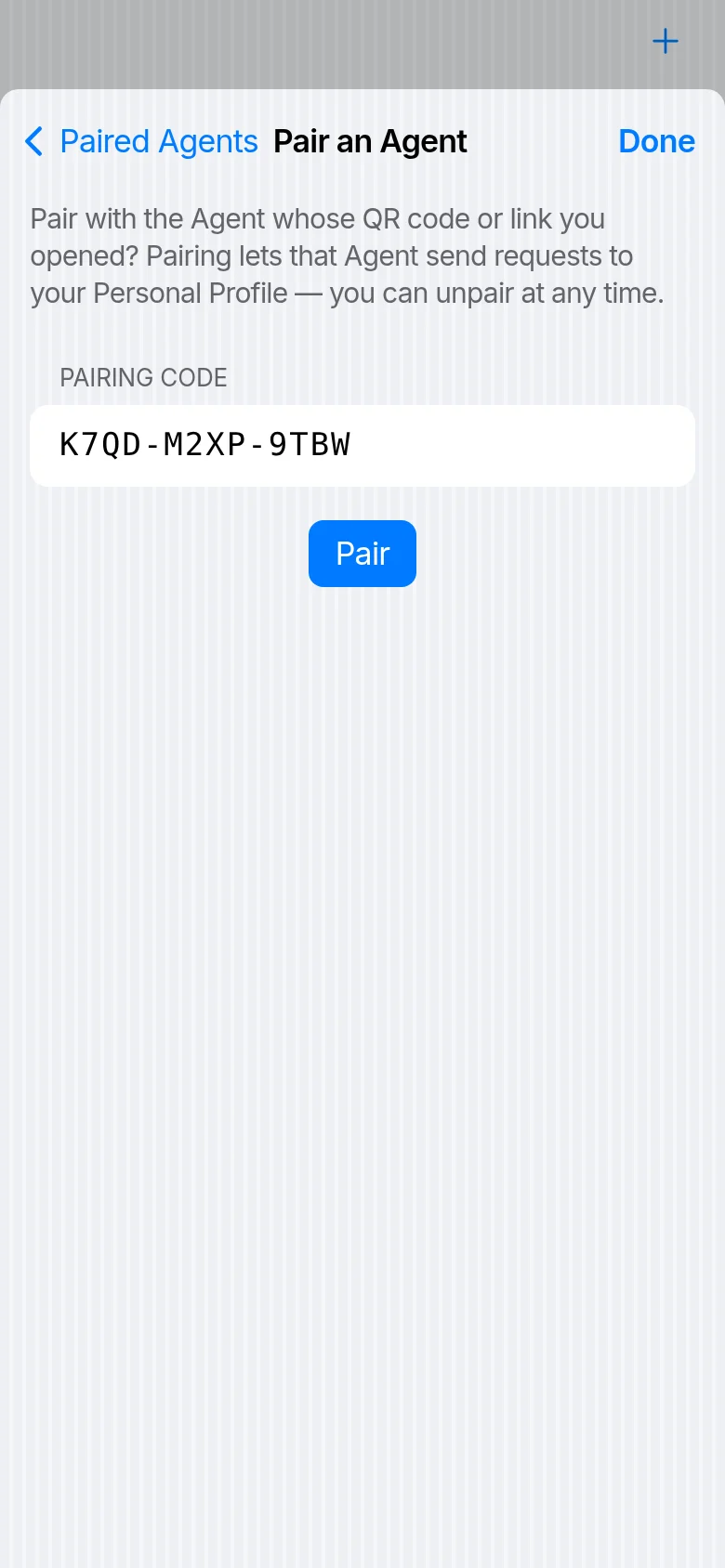
- A QR code. Someone may show you their Agent’s QR code. Scan it with your phone’s camera: Taskriz opens at Pair an Agent with the code filled in (sign in first if asked). Tap Pair.
- A pairing code. Or they may give you a code to type: in Taskriz, choose Settings → Paired Agents → Pair an Agent, enter it, and tap Pair.
Pairing codes last 15 minutes and work once. Pairing lets that Agent send requests to your Profile; you can unpair at any time.
Your account
Create an account with your email and a password of at least 12 characters, and confirm your email. The first browser you use sets itself up to open your requests — see Security and your other browsers to use another.
Taskboxes
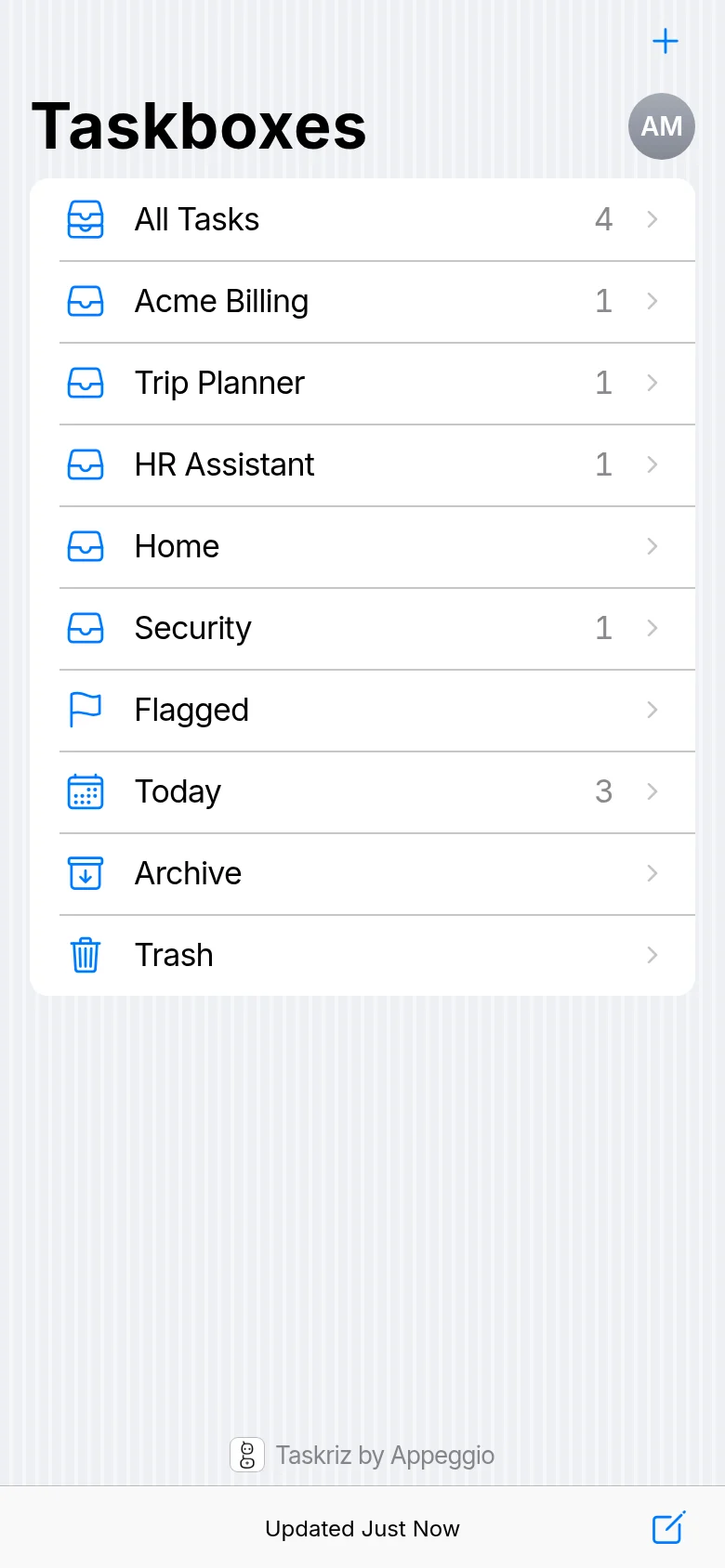
Taskriz opens on your Taskboxes. All Tasks holds every request; below it is a taskbox for each Agent you’re paired with, each showing how many are unread. Then:
- Flagged — requests you’ve flagged to come back to.
- Today — what arrived today.
- Archive — requests you’ve put away.
- Trash — deleted requests, kept 30 days and then removed for good.
Your requests
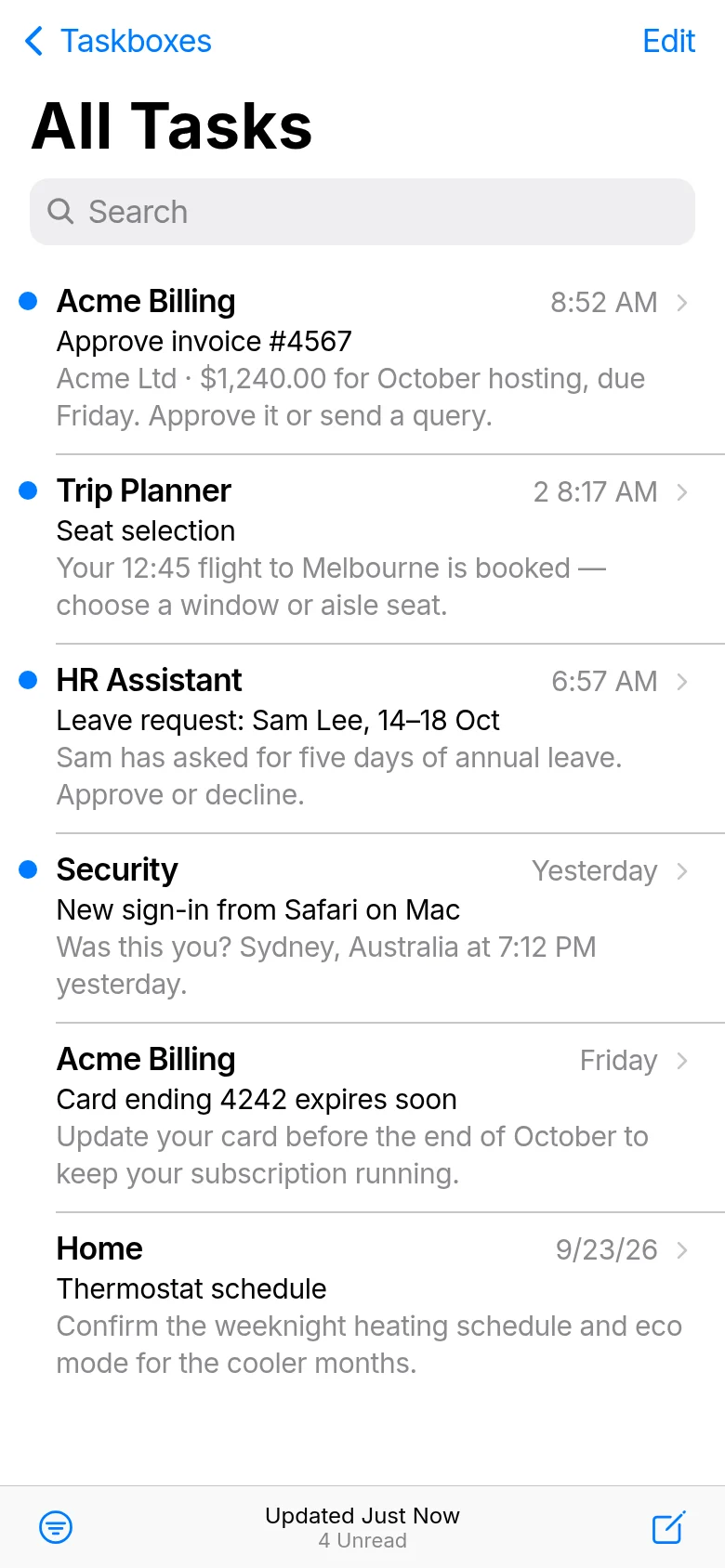
Open a taskbox to see its requests, newest first. Unread requests have a blue dot; each shows the Agent, the subject, and a short summary. Search at the top finds a request by its words.
Swipe a request to act on it quickly — trash it, archive it, flag it, or mark it read. Choose what each swipe does in Settings → Requests → Swipe Options. Choose Edit to select several at once.
Answering a request
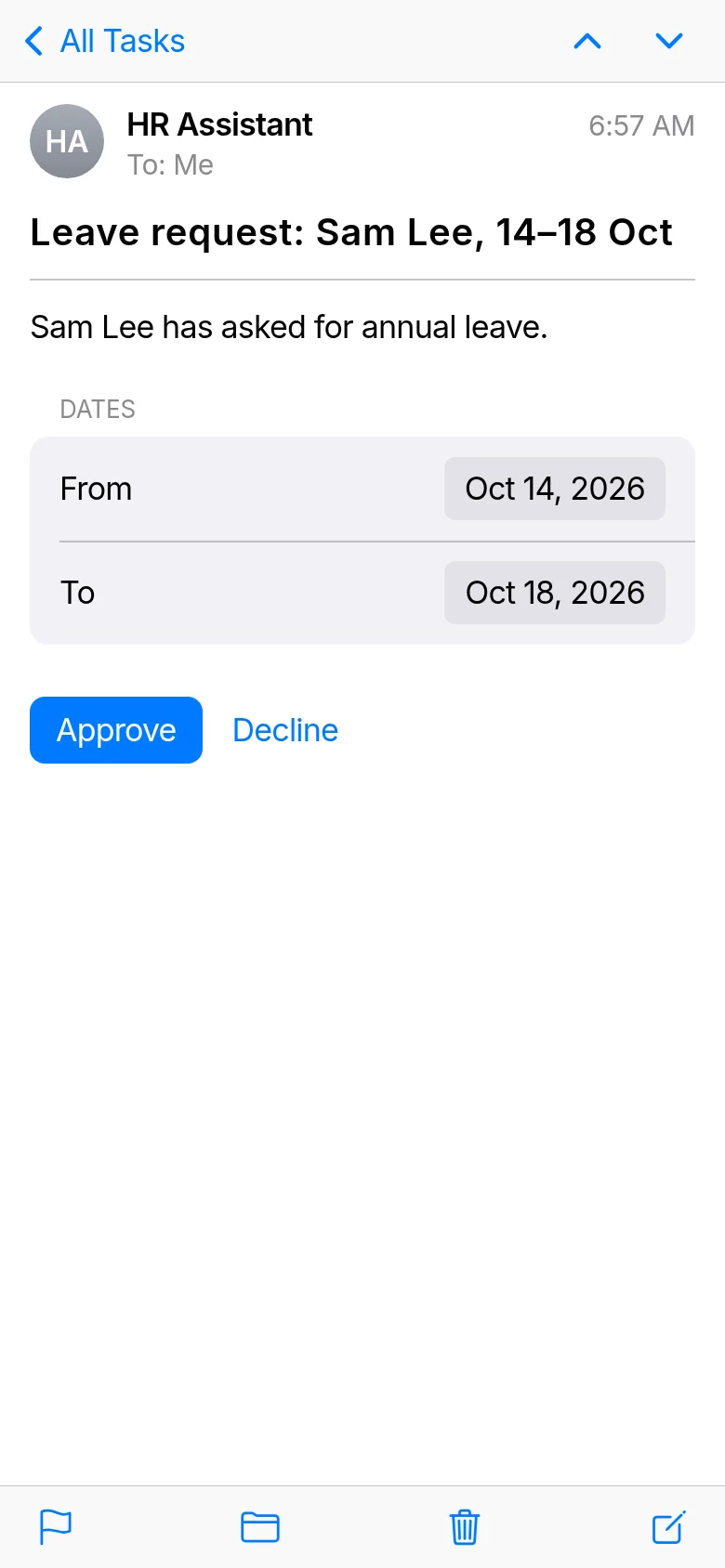
Open the request, read it, and give your answer — a choice, a date, a photo from your phone, a file, or a short note — then tap the button that sends it. Your answer goes straight back to the Agent that asked.
A request you’ve answered stays in your list, with what you said. Some requests can be answered more than once — a schedule you keep up to date, say; the others are answered once.
Threads
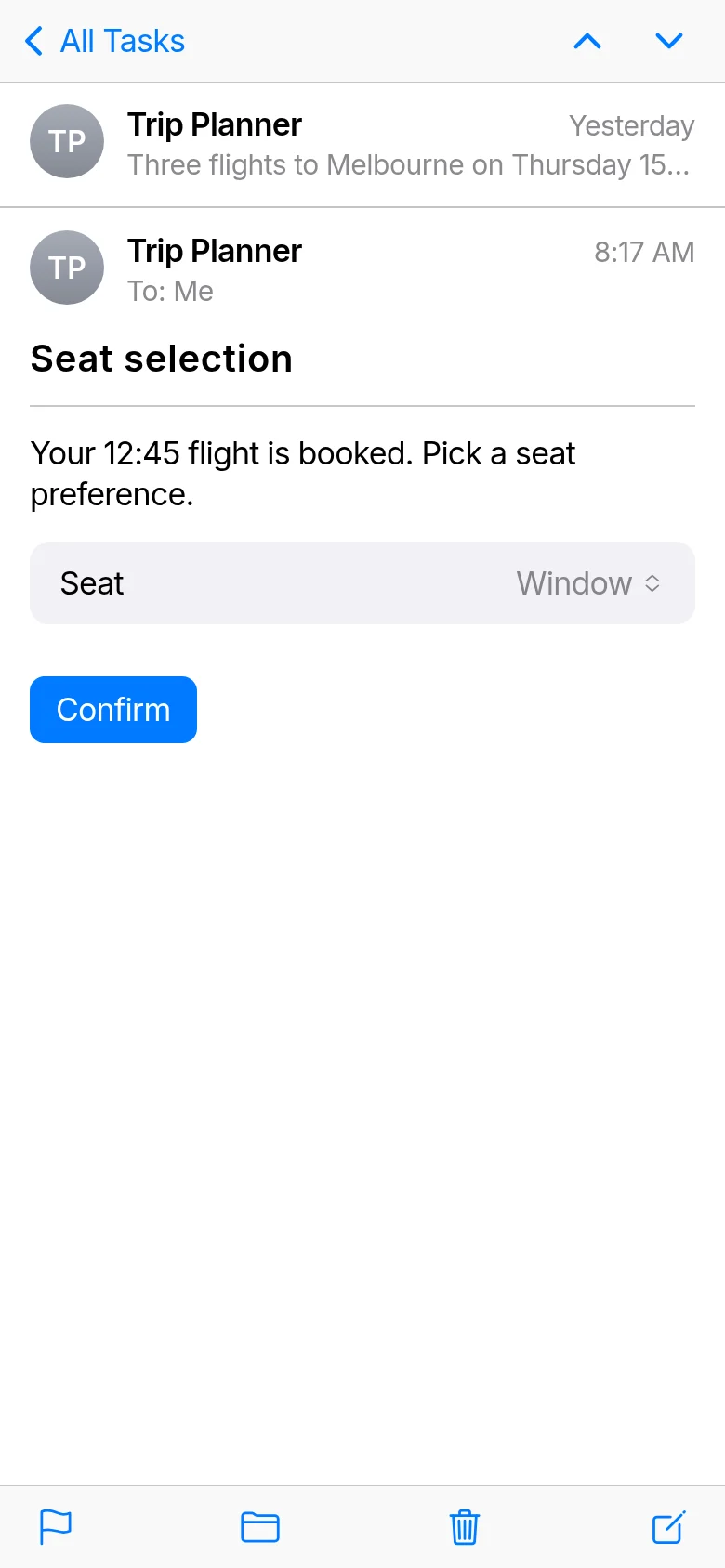
When an Agent follows up on the same task — you chose a flight, now it asks for your seat — the requests are kept together as a thread, so you can see what came before. Turn threads off in Settings → Requests → Organize by Thread.
Starting something yourself
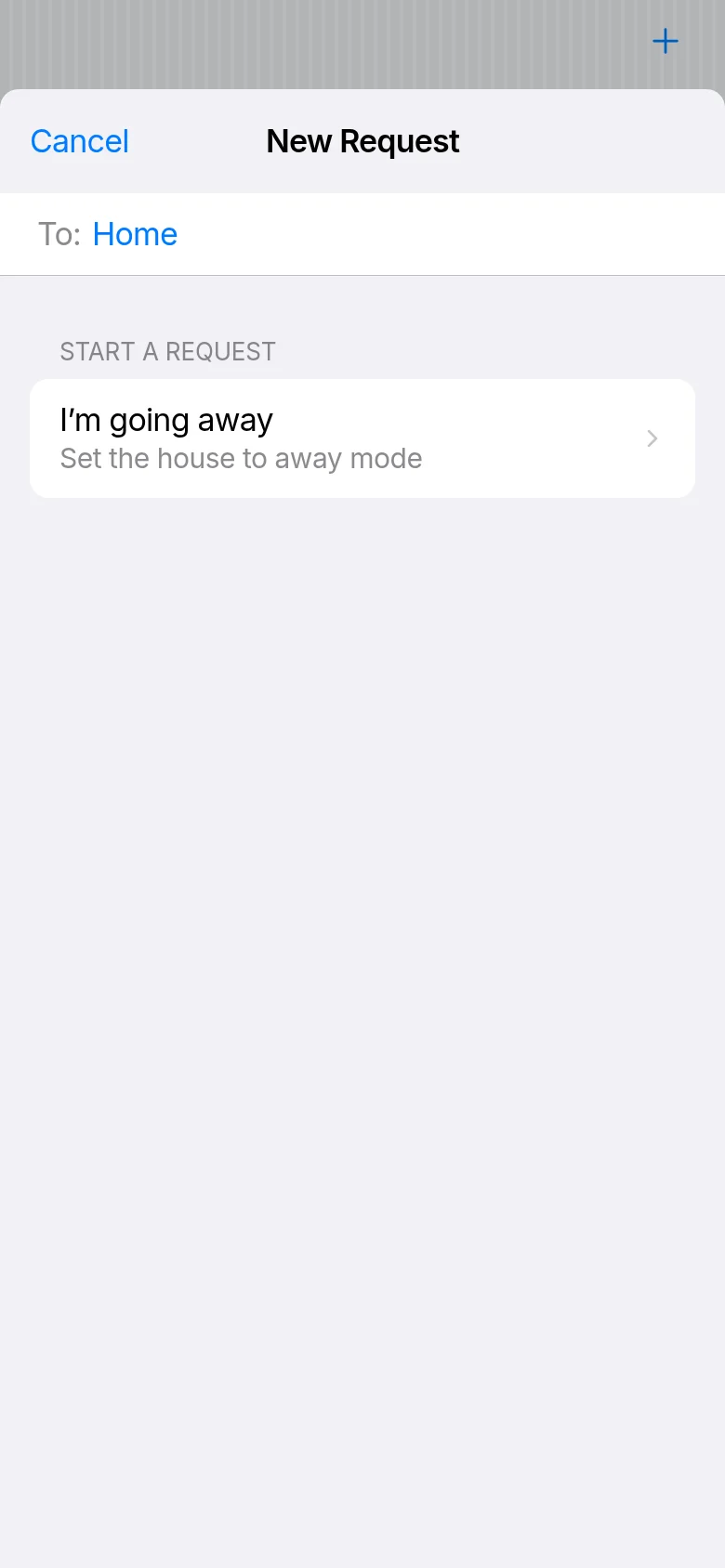
Some Agents offer actions you can start — “I’m going away”, “Request a statement”. Choose Compose (bottom right), pick the Agent, then the action. The Agent answers with a request for what it needs, which you answer as usual. An Agent’s actions are also on its card in Paired Agents.
Profiles
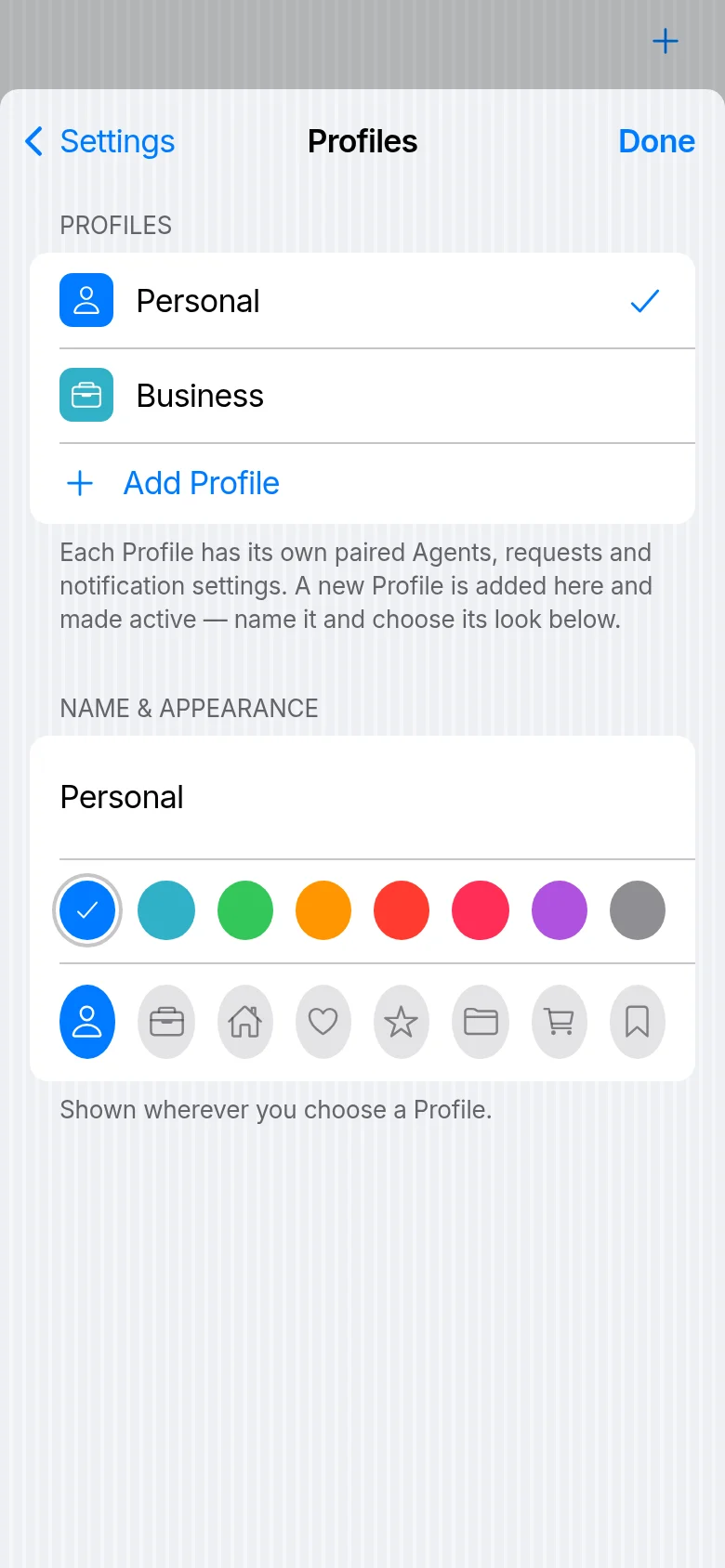
Keep things apart with Profiles — Personal and Work, say. Each Profile has its own paired Agents, requests and notification settings, and each Agent pairs with one Profile. Choose your initials (top right) → the Profile card to switch.
To add one, choose Add Profile: Taskriz makes a “New Profile” and switches to it. Give it a name, a colour and a symbol right there, under Name & Appearance — they show wherever you choose a Profile. An account can have up to 10 Profiles.
Paired Agents
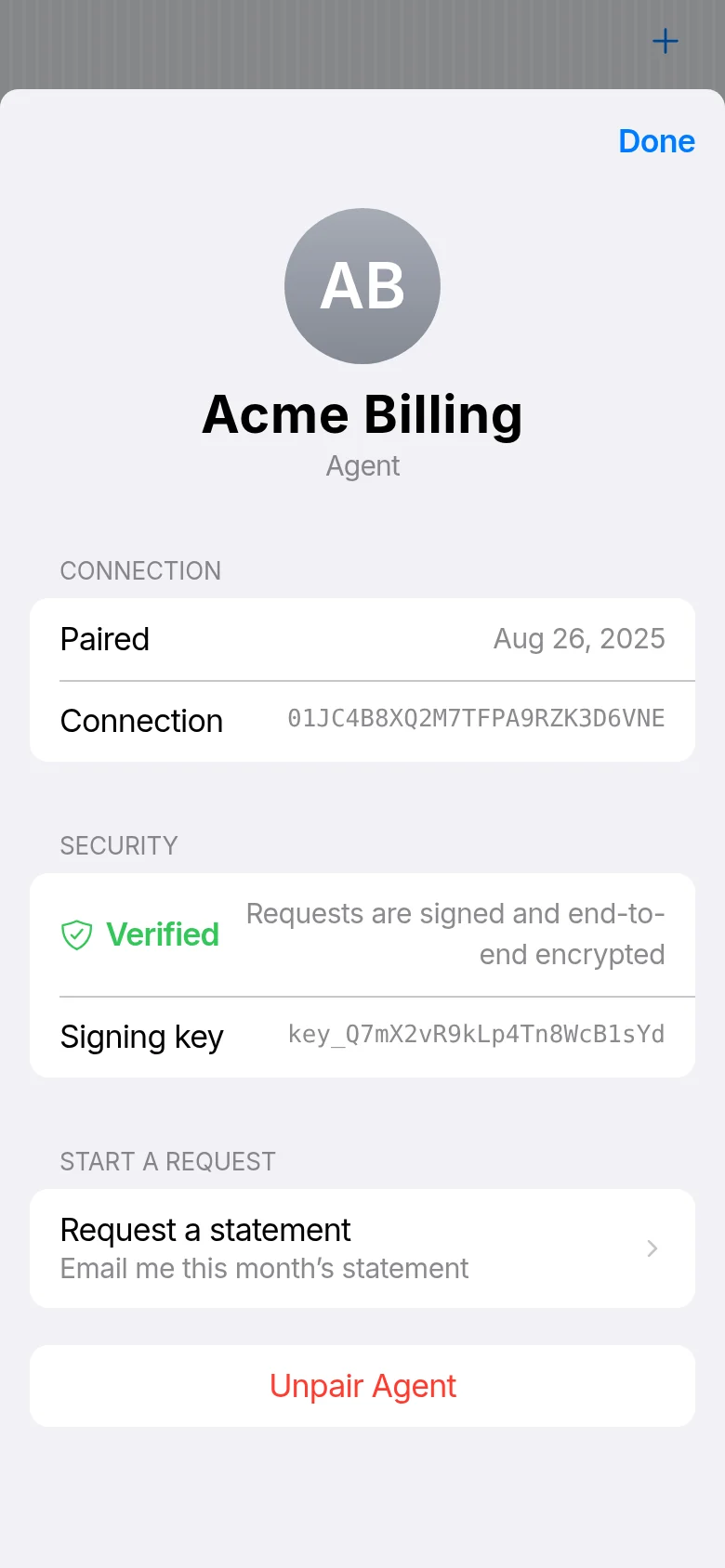
Settings → Paired Agents lists the Agents paired with this Profile; Pair an Agent adds one by QR code or pairing code. Choose an Agent to see its card: when you paired, that its requests are signed and verified, the actions it offers — and Unpair Agent. Once unpaired, it can’t send you requests any more, and its requests are deleted.
Notifications
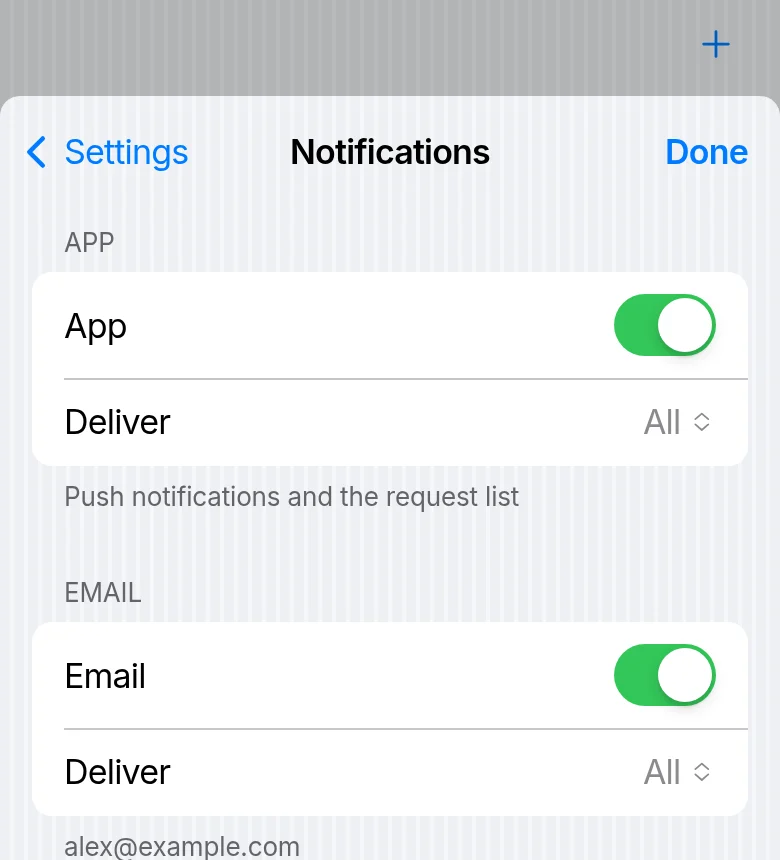
When something is waiting, Taskriz lets you know: in the app, and by email with a short notice naming the Agent — never what it asked. Notices are grouped, so you won’t get one for every request.
In Settings → Notifications, turn each way on or off and choose which requests it delivers — All, Medium & High, or High only, by the importance the Agent gives them. At least one stays on.
Security and your other browsers
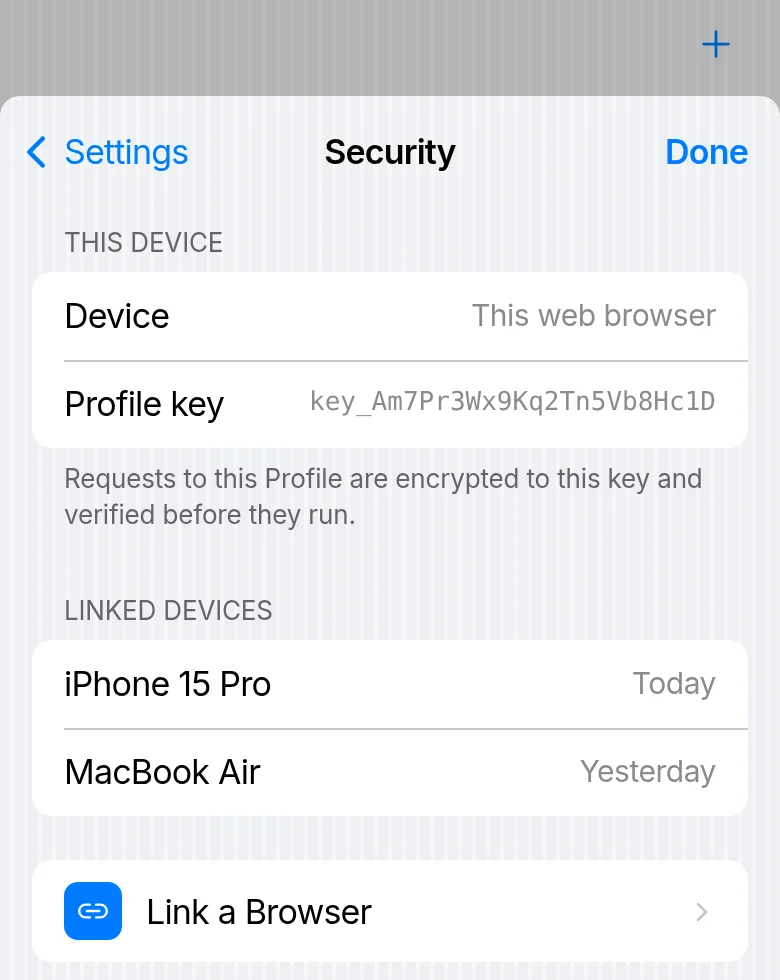
Your requests are sealed to your Profile’s key, which lives in your browser — Settings → Security shows it, and the browsers linked to it.
To read your requests on another browser too, open Taskriz there: it shows a code. Then, on a browser that’s already set up, choose Settings → Security → Link a Browser and enter that code. Your key is sealed for that browser alone.
Privacy
Each request is sealed to your own devices and stored that way, so it opens only there. The Agent sees your answer — and, if you accepted an invitation, your email address. See Security for the details.
Getting help
Questions about Taskriz? Email support@appeggio.com. Questions about a request — what it means, why you got it — are for the person or business whose Agent sent it.