 Taskriz
Ask a client for an approval
You need a client to approve a change, or tell you what to change. Ask in plain words: Taskriz makes the screen they answer, they reply from a link with no app or account, and the decision comes back to you with the request it belongs to.
See it first: try a client approval yourself, with a recording of a real one. The screenshots below are from that recording, where James asks his client, Dave.
Step by step
-
Open a new request
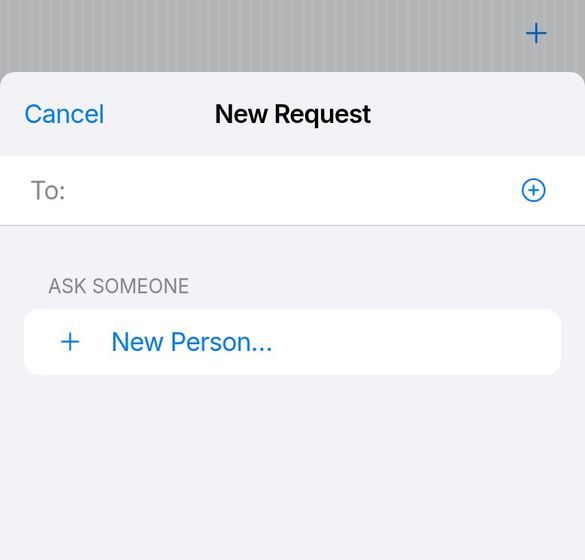
In Taskriz, tap Compose (the pencil, bottom right), or, on a new account, Ask someone something in Get Started. Under Ask Someone, tap New Person….
-
Add your client
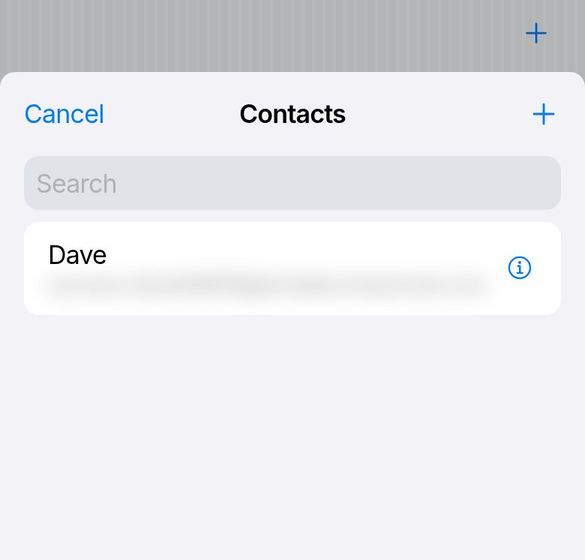
Type their name and email. Add a mobile too if you like: texts go to mobiles in Australia and the US. Next time, they’re in Contacts (⊕ beside To:).
-
Write what you need, in plain words
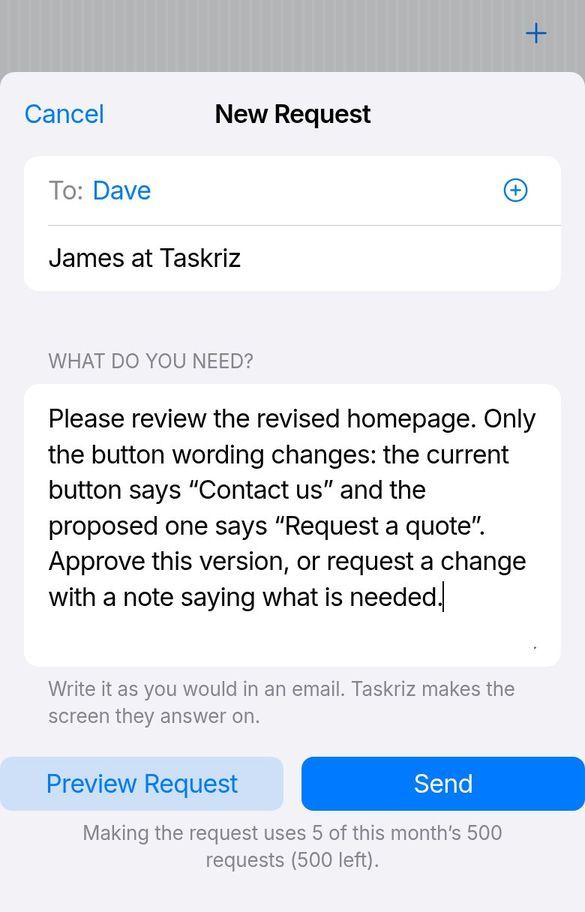
Write it as you would in an email: the version to review, what changes, and that they should approve it or request a change with a note. The first time, add your business’s name: it’s who the request is from. The recipe below is a good start.
-
Check the preview, then send
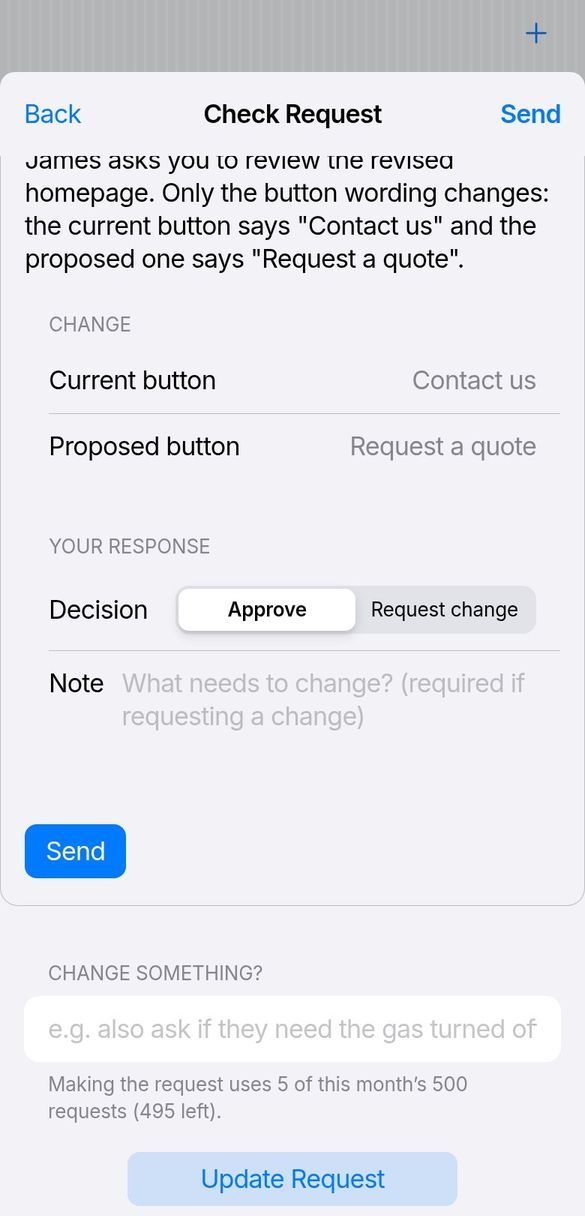
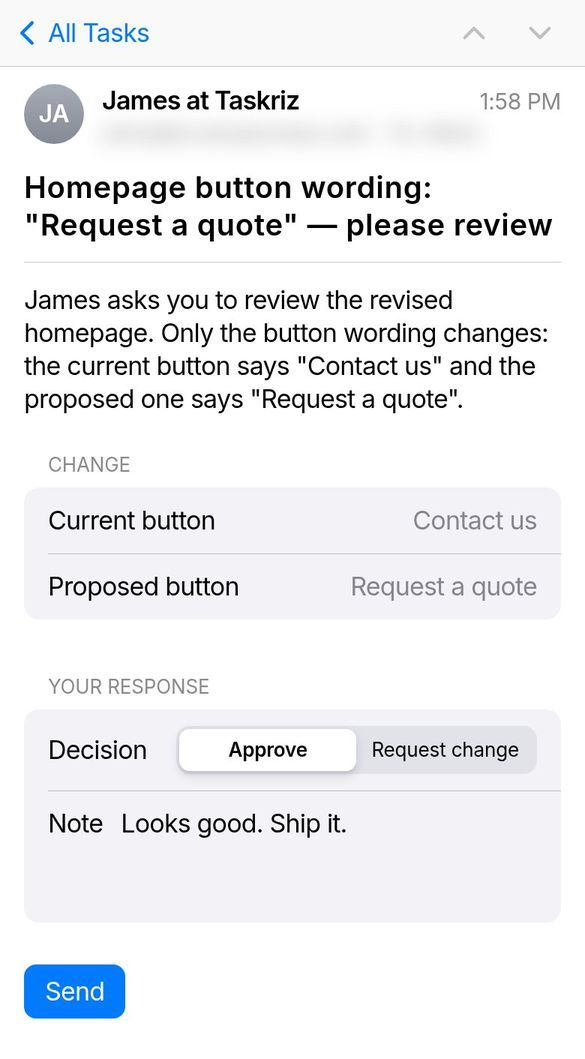
Tap Preview. Taskriz designs the screen your client will answer: here, the current and proposed button, Approve or Request change, and a note. Change it in words under Change something? if you need to, then tap Send. Making a request this way uses 5 of your plan’s monthly requests.
-
Your client opens the link
They get your request by email (or text). One tap on View Request opens it in their browser: no app or account.

-
They answer
They approve it, or ask for a change, add a note and tap Send.
-
The answer comes back to you
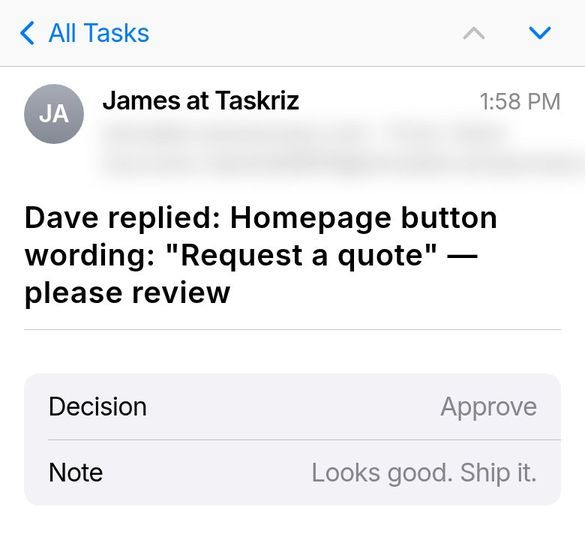
Their decision and note arrive in your Taskriz inbox, with the request they belong to. Nothing to chase.
The recipe
Copy this into What do you need? and fill in the brackets:
Ask [client] to review [specific deliverable and version]. Explain [context and scope]. Show the proposed change and any reference they need. Ask them to approve it or request a change, with a note explaining what is needed. Let me preview the request before sending.
Check the preview before you send: the content, and that it’s going to the right person.
Try it on a real request
Pick a client approval you’re already waiting on this week, and send it to someone who’s expecting it. You can send one to yourself first to see what they’ll see.