 Taskriz
Website Requests
More than a contact form.
A contact form takes a note, and starts a round of phone tag. Website Requests turns what a visitor wants into a complete request, ready to act on: they say what they need in their own words, get the right form for it, and what lands in your Taskriz inbox has everything you need to book the job.
A contact form takes a note.
Website Requests takes the request.
- Name
- Sam Lee
- sam@example.com
- Message
- “hi my tap is leaking can someone come”
- You call back. Voicemail.
- “Where’s the property?”
- “Can you send a photo?”
- “When are you home?”
- What they want
- Repair: leaking tap
- In their words
- “hi my tap is leaking can someone come”
- Where
- 12 Smith St, Northcote
- How urgent
- Leaking steadily, not flooding
- Best time
- Weekday mornings
- Photo
- 1 attached
- Contact
- Sam Lee · sam@example.com · 0400 000 000
The visitor types exactly what they would have put in your contact form. Taskriz asks for the rest on the spot, with the right form for what they want, so nobody has to chase it later.
How it works
A visitor asks
In the request box on your website, in their own words — “I need a skip bin next week” — or by tapping one of your suggestions.
Taskriz builds the form
Taskriz’s AI knows what your business offers and turns the message into the right form: the details you need, and the visitor’s name, email and mobile so you can follow up. It follows your instructions, and never makes up prices — your team confirms those.
It lands in your inbox
When they send it, a summary — what they asked for, their own words, their contact details and answers — arrives in your Taskriz inbox from your Agent, and can be emailed to an address you choose too, where replying goes straight to the visitor.
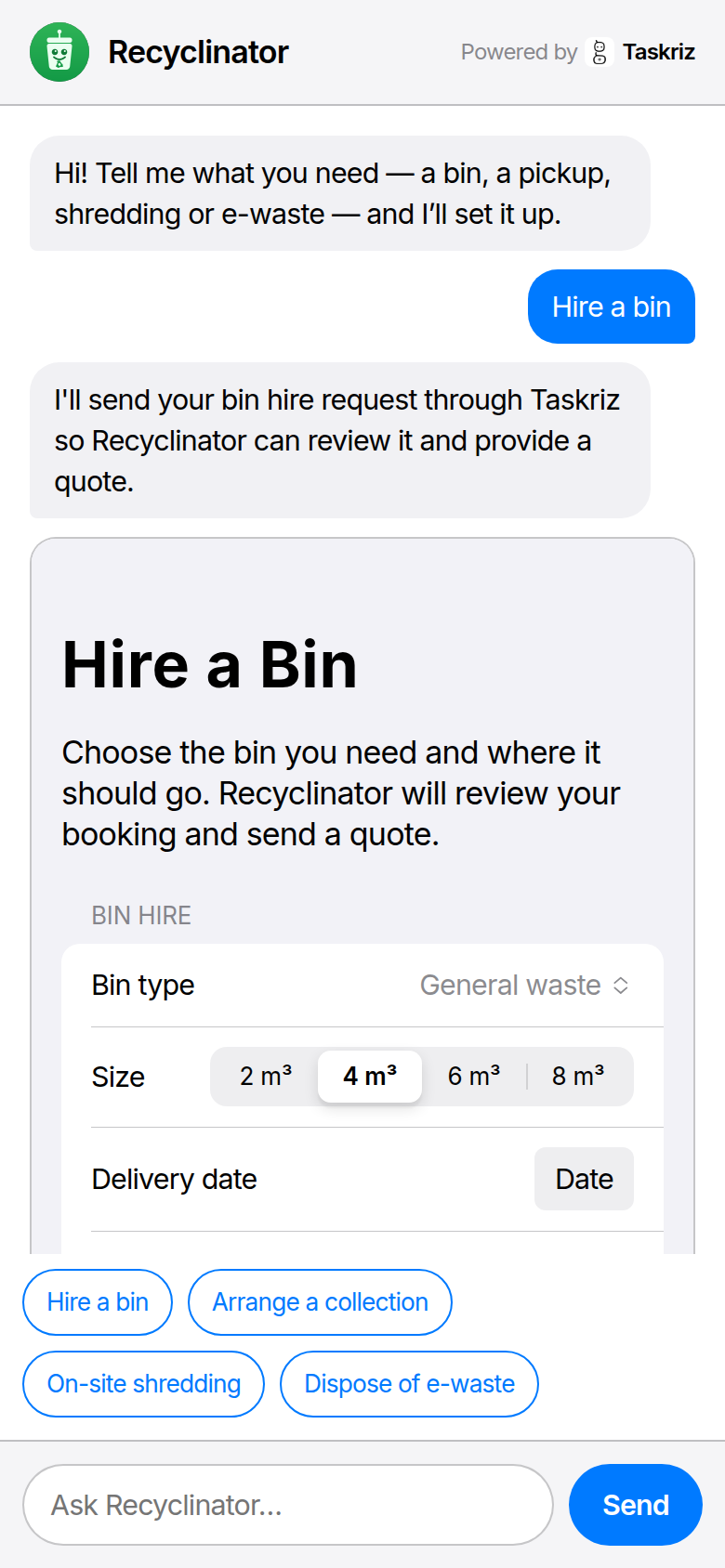
See it working on the live demo: a recycling company, Recyclinator, with Website Requests on its site.
Set it up
Create a free account
No card needed. Start free.
Make an Agent for your business
In Taskriz, open Settings → Developer and choose New Agent. Name it after your business — your visitors see this name in the chat. Its credentials are for developers; you can skip them.
Add your website
On the Agent’s page, choose Website Embed, and under Add a Website Embed enter your website’s address (for example https://www.yourbusiness.com), and if you like a greeting and a sentence about what your business does — it helps the AI build the right forms. Choose Create Embed.
Tell the AI how to behave (optional)
On the same page, write Instructions for the AI in your own words — up to 1,000 characters on its tone, what to offer or refuse, what to ask for, and what not to promise. For example: “Be friendly and brief. We only service Melbourne metro. Never quote prices — say our team confirms a quote within a day. For repairs, ask for a photo.” Add Chat Suggestions too, the buttons visitors can tap.
Test it, then make it live
Your changes are saved as a draft, so visitors don’t see them yet. Choose Try It to chat as a visitor would, with your draft: ask what your customers ask and check the form it builds — nothing is sent. Change the instructions and try again until it’s right, then choose Make Live. Discard Changes goes back to what’s live.
Paste it into your website
Copy one of the two snippets Taskriz gives you and paste it into your website — most website builders have an “embed code” or “custom HTML” block for this.
Chat button
A chat button in the corner of every page it’s on. Visitors tap it to open the chat; on a phone it fills the screen.
Inline chat
The chat itself, right where you paste it — on a bookings or contact page, for example.
Yours, and only on your website
- One website. The chat works only on the one website you enter; browsers won’t show it anywhere else. Change the website, or switch the chat off, at any time.
- No cookies, no tracking. The chat sets no cookies and doesn’t measure your visitors.
- Their details go to you. What a visitor sends goes to your Taskriz inbox, for you to follow up.
What it costs
Website Requests is included in every plan, for now — including Free. See Pricing for the plans.
Questions
- Do my visitors need an account or an app?
- No. They type in the chat on your website and fill in the form it shows them — nothing to sign up for or install.
- Where do bookings go?
- To your Taskriz inbox, from your Agent — and, if you like, emailed to an address you choose (Taskriz sends it a code to confirm it), where replying goes straight to the visitor. Each booking is a summary: what they asked for, their own words, their name, email and mobile, and their answers.
- Can I use it on more than one website?
- Each Agent’s chat works on one website, the one you enter when you set it up. You can change that website at any time in the chat’s settings.
- What does it cost?
- Website Requests is included in every plan, for now — including Free. The AI that builds each form is on us while Website Requests launches.
- Can I try it first?
- Yes — the live demo shows Website Requests on a business’s website, exactly as your visitors would see it.
- Can I control what the chat says and offers?
- Yes. In the chat’s settings, Instructions for the AI takes up to 1,000 characters in your own words: its tone, what to offer or refuse, what to ask for, and what not to promise. Taskriz’s own rules still apply — the chat always asks for the visitor’s details, declines anything harmful, and never makes up prices.
- Can I check it before visitors see it?
- Yes. Changes to the chat’s greeting, About the business, suggestions and instructions are saved as a draft. Try It opens your chat as a visitor would see it, with the draft — type a question and see the form it builds; nothing is sent. When you’re happy, choose Make Live.
- My website has a Content Security Policy. Will it work?
- Yes, if your policy lets the page show a frame from Taskriz. The Developers page explains what to add.